

1212 words
6 minutes
定制CentOS 6.4自动化安装ISO镜像光盘
和朋友今天正好聊到CentOS的自动化安装光盘制作问题,就顺便把自己之前的测试过程发出来。希望能够帮到大家。 直接发下自己之前做的时候的工作记录了,因为是工作中使用,添加了一些所需的软件包之类的东西,其实您也完全可以自由发挥,直接装完系统,一个优化好的LNMP等等众多软件都已经安装好了的系统也是完全可能的,想想网上的那些一键安装的ISO… 所以大家加油哦!后期我也会完善本篇文章的具体注释的。
定制步骤
- 安装一个干净的操作系统.包括基本的系统和所需要的工具等. 比如:对于http,mysql等软件,建议使用编译的方式安装, 然后打包放进去,可以减少许多依赖包的麻烦.
- 安装系统后,收集系统已安装的软件包,使用脚本统一转存到一个目录中.
- 在安装光盘复制images镜像,从光盘启动centos安装所需的文件等.
- 定义自己的kickstart安装脚本.
- 按照之前转存的软件(rpm)包, 重新生成光盘的report信息.
- 打包生成ISO文件,及MD5效验码.
光盘结构介绍
- isolinux目录存放光盘启动时的安装界面信息
- images目录包括了必要的启动映像文件
- CentOS目录存放安装软件包及信息
- .discinfo文件是安装价质的识别信息
安装时默认第一项是text自动安装,也可以选择第二项进行手动安装…
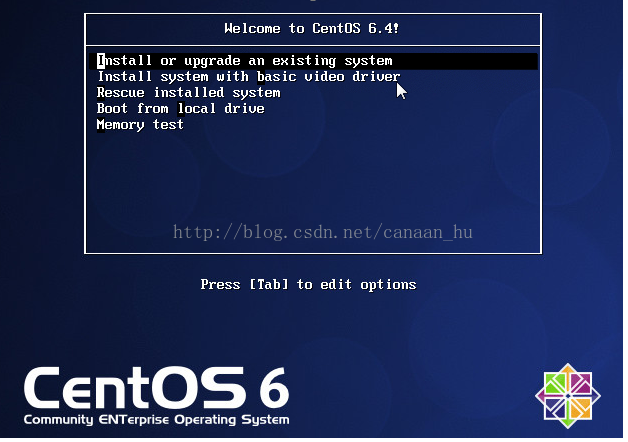
安装完成后的ISO
IP地址:172.16.0.110 root密码:passw0rd
操作过程记录
一、挂载光盘,使用脚本拷贝相关软件包到/ISO/Packages目录下
[root@CentOS ~]# mkdir /mnt/cdrom[root@CentOS ~]# mount /dev/cdrom /mnt/cdrom[root@CentOS~]# /usr/bin/rsync -a --exclude=Packages/ --exclude=repodata/ /mnt/cdrom/ /ISO/[root@CentOS ~]# mkdir -p /ISO/{Packages,repodata}[root@CentOS ~]# vi copy.sh#!/bin/bashcd /rootawk '/Installing/{print $2}' install.log | sed 's/^*://g' >package.txtDVD='/mnt/cdrom/Packages'PACKDIR='/root/package.txt'NEW_DVD='/ISO/Packages'while read LINEdocp ${DVD}/${LINE}*.rpm ${NEW_DVD} || echo "$LINE don't cp......."done < package.txtrm -f package.txt[root@CentOS ~]# chmod +x copy.sh[root@CentOS ~]# ./copy.sh[root@CentOS ~]# ll /ISO/Packages/ |wc -l285二、定制kickstart安装脚本ks.cfg
[root@CentOS ~]# cd /ISO[root@CentOS ISO]# cp ~/anaconda-ks.cfg isolinux/ks.cfgks.cfg文件内容如下
# Kickstart file automatically generated by anaconda.
#version=DEVELinstalltextcdromlang en_US.UTF-8keyboard usnetwork --onboot no --device eth0 --bootproto dhcp --noipv6rootpw --iscrypted $6$x8.IJeCQkCgkVmt7$1xpLAdczrfqxYlvkVwMAus6nLPFk6sl45X6CuTsmpFlAko6/NEFyuJXvMgZujfAu5V9T04hZ1P5ZMlR0TZtdK0firewall --service=sshauthconfig --enableshadow --passalgo=sha512selinux --enforcingtimezone --utc Asia/Shanghaibootloader --location=mbr --driveorder=sda --append="crashkernel=auto rhgb quiet"# The following is the partition information you requested# Note that any partitions you deleted are not expressed# here so unless you clear all partitions first, this is# not guaranteed to work#clearpart --linux --drives=sda#volgroup VolGroup --pesize=4096 pv.008002#logvol / --fstype=ext4 --name=lv_root --vgname=VolGroup --grow --size=1024 --maxsize=51200#logvol swap --name=lv_swap --vgname=VolGroup --grow --size=4000 --maxsize=4000
#part /boot --fstype=ext4 --size=500#part pv.008002 --grow --size=1
clearpart --allzerombrpart /boot--fstype=ext4 --size=200part swap --size=2048part / --fstype=ext4 --size=20000part /data --fstype=ext4 --grow --size=200
repo --name="CentOS" --baseurl=file:///mnt/source --cost=100
%packages@base@console-internet@core@debugging@directory-client@hardware-monitoring@java-platform@large-systems@network-file-system-client@performance@perl-runtime@server-platform@server-policypaxoddjobsgpiodevice-mapper-persistent-datasamba-winbindcertmongerpam_krb5krb5-workstationperl-DBD-SQLite%end三、修改/ISO/isolinux/isolinux.cfg文件,默认isolinux.cfg的权限为444,只能读,无法修改
[root@CentOS ISO]# chmod 644 isolinux/isolinux.cfg[root@CentOS ISO]# vi isolinux/isolinux.cfgisolinux.cfg文件内容如下
default vesamenu.c32#prompt 1timeout 100 ###10秒钟display boot.msgmenu background splash.jpgmenu title Welcome to use CentOS 6.4!menu color border 0 #ffffffff #00000000menu color sel 7 #ffffffff #ff000000menu color title 0 #ffffffff #00000000menu color tabmsg 0 #ffffffff #00000000menu color unsel 0 #ffffffff #00000000menu color hotsel 0 #ff000000 #ffffffffmenu color hotkey 7 #ffffffff #ff000000menu color scrollbar 0 #ffffffff #00000000label linux menu label ^Auto Install Xlogin Linux System menu default kernel vmlinuz append ks=cdrom:/isolinux/ks.cfg initrd=initrd.img ###ks文件路径label vesa menu label Install system with ^basic video driver kernel vmlinuz append initrd=initrd.img xdriver=vesa nomodesetlabel rescue menu label ^Rescue installed system kernel vmlinuz append initrd=initrd.img rescuelabel local menu label Boot from ^local drive localboot 0xfffflabel memtest86 menu label ^Memory test kernel memtest append -四、安装制作系统镜像所需要的工具,执行createrepo创建软件仓库
[root@CentOS ISO]# yum -y install anaconda repodata createrepo mkisofs rsync[root@CentOS ISO]#[root@CentOS ISO]# declare -x discinfo=$(head -1 .discinfo)[root@CentOS ISO]# echo $discinfo1341569670.539525[root@CentOS ISO]# cp /mnt/cdrom/repodata/*-c6-x86_64-comps.xml repodata/c6-x86_64-comps.xml[root@CentOS ISO]# createrepo -u "media://$discinfo" -g repodata/c6-x86_64-comps.xml ./Spawning worker 0 with 607 pkgsWorkers FinishedGathering worker results
Saving Primary metadataSaving file lists metadataSaving other metadataGenerating sqlite DBsSqlite DBs complete五、使用mkisofs命令生成ISO文件
[root@CentOS /]# mkisofs -o CentOS-6.4_64.iso -b isolinux/isolinux.bin -c isolinux/boot.cat -no-emul-boot -boot-load-size 4 -boot-info-table -R -J -v -T /ISOI: -input-charset not specified, using utf-8 (detected in locale settings)genisoimage 1.1.9 (Linux)Scanning /ISO/Scanning /ISO/EFIScanning /ISO/EFI/BOOTExcluded: /ISO/EFI/BOOT/TRANS.TBLExcluded: /ISO/EFI/TRANS.TBLScanning /ISO/repodataScanning /ISO/imagesExcluded: /ISO/images/TRANS.TBLScanning /ISO/isolinuxExcluded: /ISO/isolinux/TRANS.TBLExcluded by match: /ISO/isolinux/boot.cat………………………………………….98.05% done, estimate finish Tue Jul 17 02:43:01 2012Total translation table size: 81205Total rockridge attributes bytes: 35197Total directory bytes: 59644Path table size(bytes): 96Done with: The File(s) Block(s) 203755Writing: Ending Padblock Start Block 203836Done with: Ending Padblock Block(s) 150Max brk space used 65000203986 extents written (398 MB)六、生成ISO文件MD5值
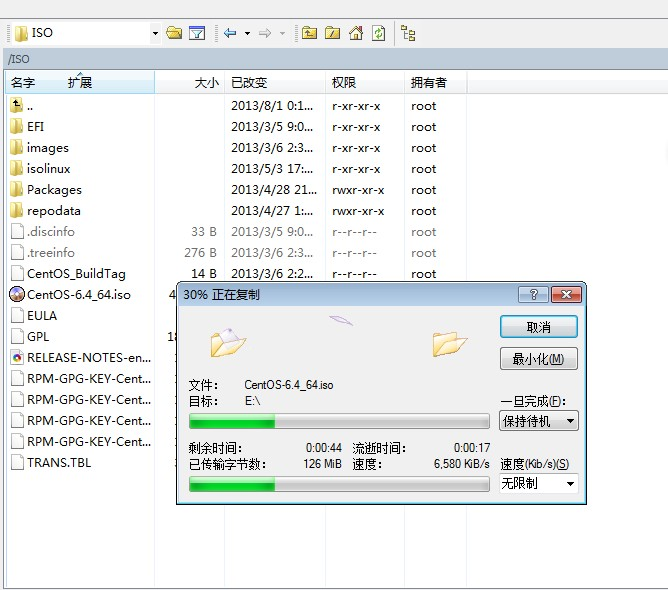
[root@CentOS ISO]# /usr/bin/implantisomd5 /ISO/CentOS-6.4_64.isoInserting md5sum into iso image...md5 = 1355f3a08334162777e6ad867c448d2eInserting fragment md5sums into iso image...fragmd5 = a832435cd7aeb593363287aa551476c9dd21be459aada4c29e9f3475da1efrags = 20Setting supported flag to 0[root@CentOS ISO]#以上是整个ISO的制作所有的操作过程,看起来绝对够简单吧!希望这篇文章能够帮到你哦! 最后找个例如winscp之类的工具将ISO文件传输到本机,就可以刻盘安装了…
定制CentOS 6.4自动化安装ISO镜像光盘
https://blog.w23ta0.eu.org/posts/custom-centos-6-4-auto-install-iso/